
Your website. One step at a time.
This public edition covers all areas for editors and administrators. Your installation’s handbook follows your role and enabled modules. Screenshots show 2.6; the archive, search and comments chapters cover the additions in 2.7.

Welcome
Your website runs on nibbly, a lean content management system. If you know WordPress, you'll find your way around quickly: there's a dashboard, entries with drafts and publishing, a media library and a trash.
The biggest difference: you edit pages right on the website. You click on a text and start typing, no block editor needed. There are no plugins, theme updates or database.
You work in two places:
On the website
For texts, images and links on the pages. Switch on the Visual Editor in the bar at the top.
In the dashboard
For everything managed in lists: pages, news, events, people, messages and the settings.
Your WordPress knowledge, translated
| In WordPress | In nibbly | Note |
|---|---|---|
| /wp-admin | /admin | Sign-in and dashboard. |
| Gutenberg, editing pages | Visual Editor | Edit right on the page, the way visitors see it. |
| Posts | News | With drafts, publishing and a cover image. |
| Media Library | Media Library and image manager | Upload images, sort them into folders, add alt text. |
| Appearance › Menus | Menu/Footer | Drag to sort, a switch for visible or hidden. |
| Revisions | Backups | Bring back an earlier version of a page with one click. |
| Plugins | Modules | Switch extra features on and off in the settings. |
Frames in the screenshots show where to click. Click a screenshot to enlarge it.
↑ On this pageSigning in and the dashboard
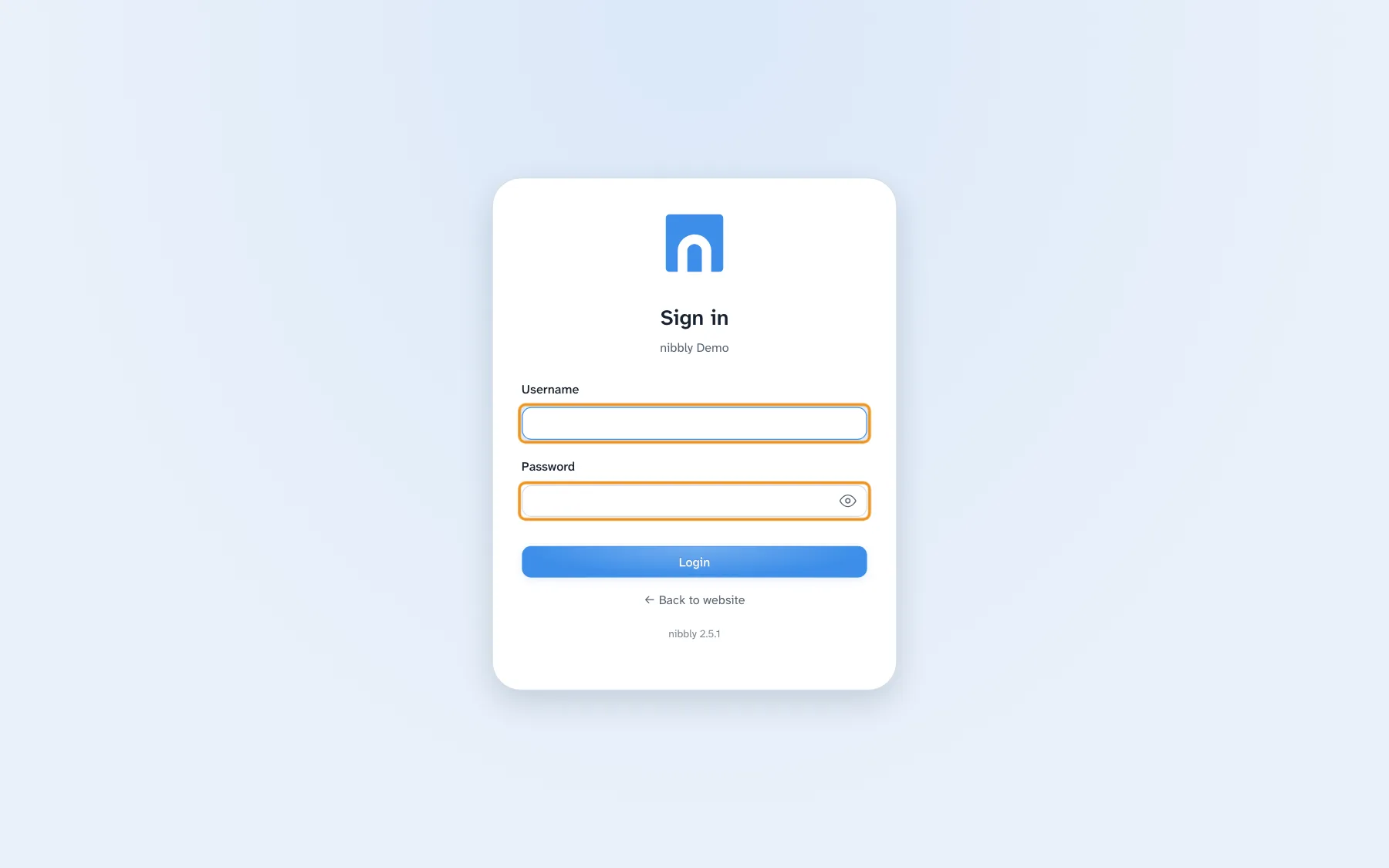
- Open your website's address with /admin at the end. Alternatively, double-click the year in the copyright line at the very bottom of the website's footer.
- Enter your username and password and click Login. The eye in the password field shows the password in plain text.
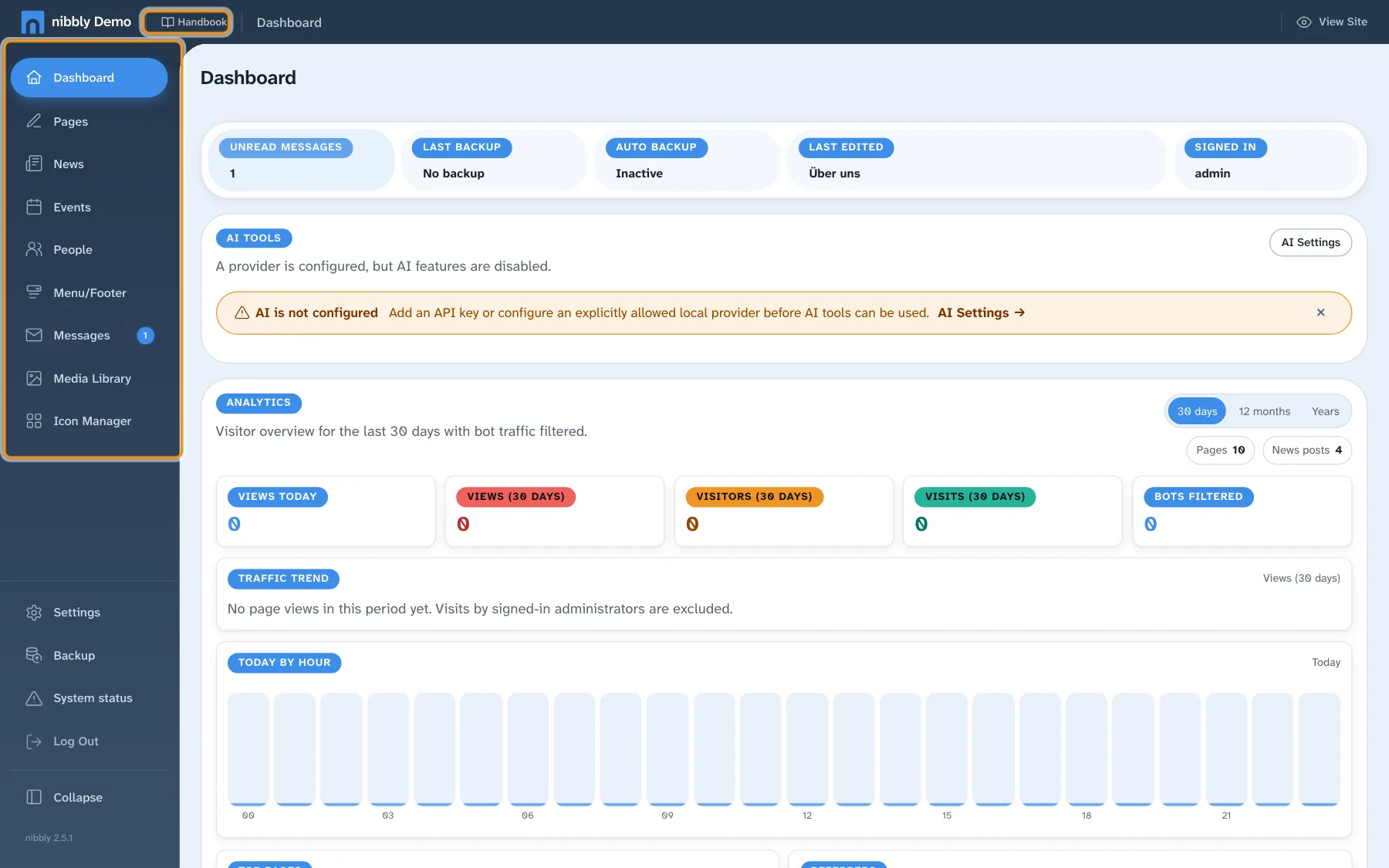
- You land in the dashboard. All areas are listed on the left; at the top right, View Site takes you to the website and keeps you signed in. At the top left, next to the site name, Handbook opens this guide in a new tab.
Forgot your password
Once the website is allowed to send email, Forgot password? appears below the sign-in form. Enter your account's email address and nibbly sends you a link to reset your password. The link is valid for one hour. Without email sending, or without an email address in your account, an admin resets your password.
After three wrong attempts you have to wait a little longer before each new try; the button shows the waiting time. After many failed attempts, nibbly blocks sign-ins from that connection for 24 hours. This protects against attacks that try out passwords.
Signing out
In the dashboard, Log Out is at the bottom of the sidebar; on the website it's at the far right of the bar. On the website you stay on the same page afterwards. Always sign out, especially on other people's computers. After one hour without activity nibbly ends the session by itself; just sign in again. In edit mode nibbly keeps the session open as long as you're working.
Edit mode
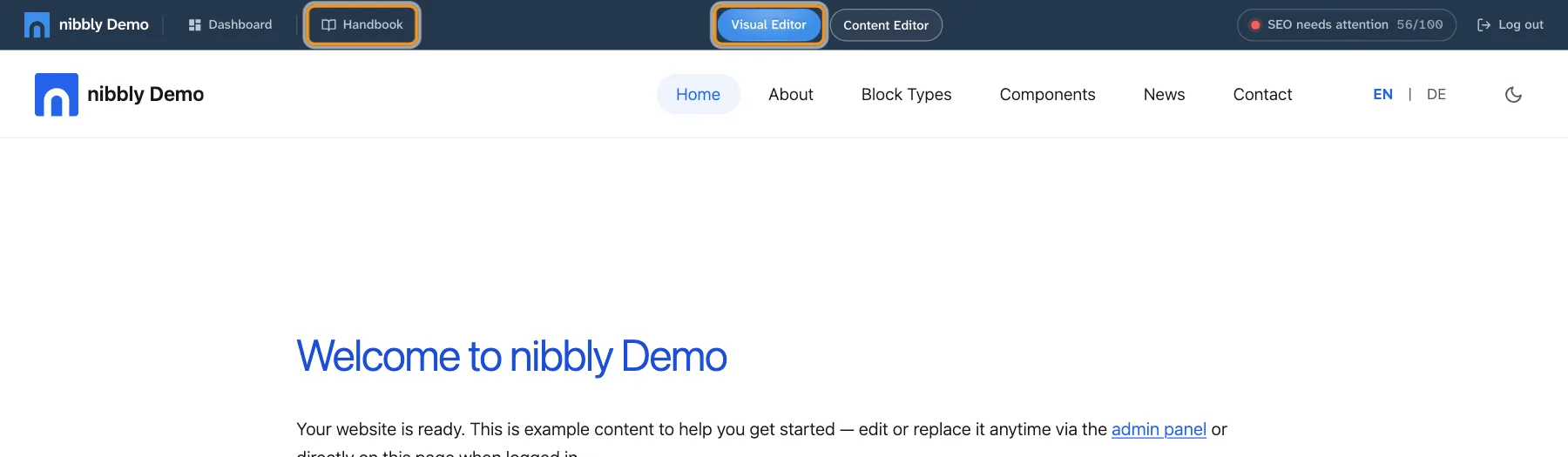
While you're signed in, you see a bar at the top of every page of the website. With it you edit exactly the page you're on. Visitors don't see this bar.
Switching on edit mode
- On the website, go to the page you want to change and click Visual Editor at the top.
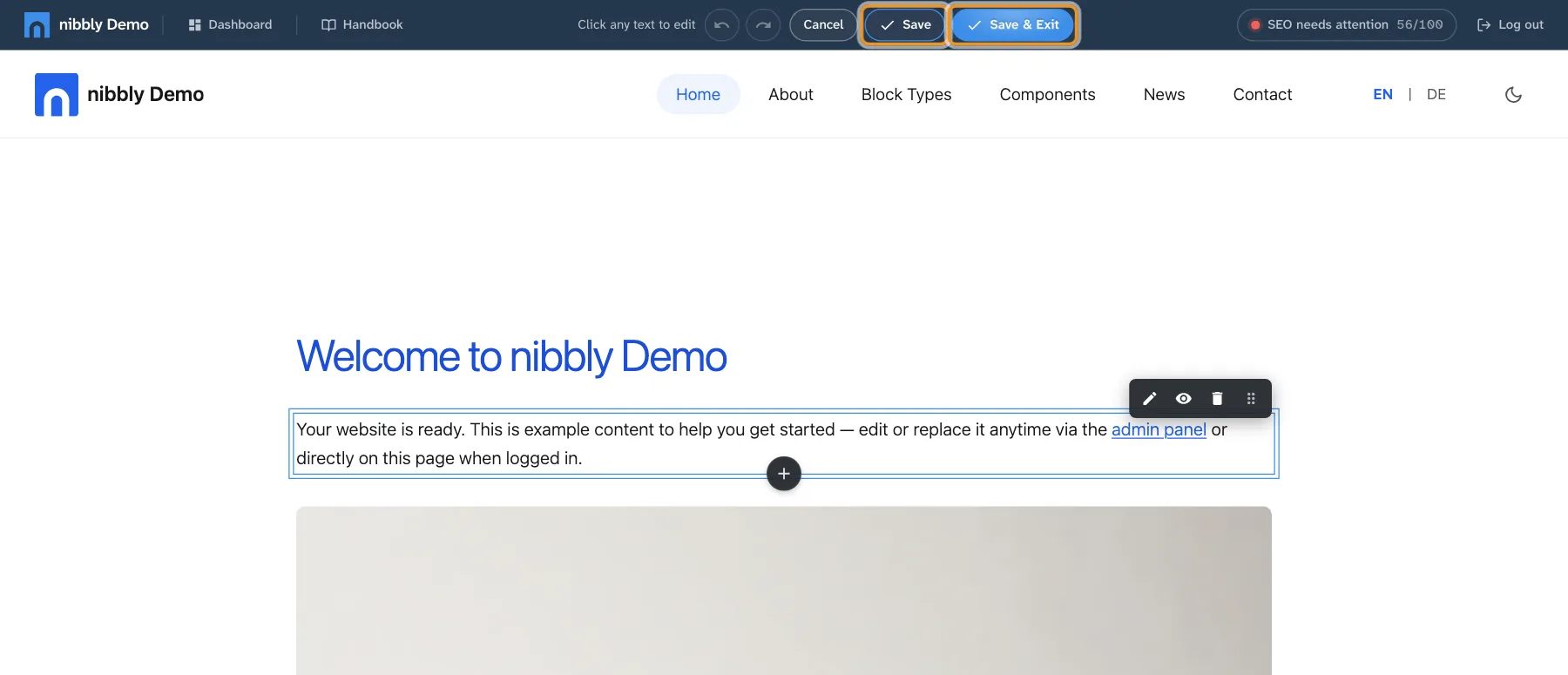
- Move the mouse over the page. Everything you can edit gets a frame: texts, images, links and whole sections.
- Click and change what you want. The next chapters show how this works for Editing text, Links and buttons and Images and media.
- Finally Save & Exit. More on this in Saving and undo.
Sections
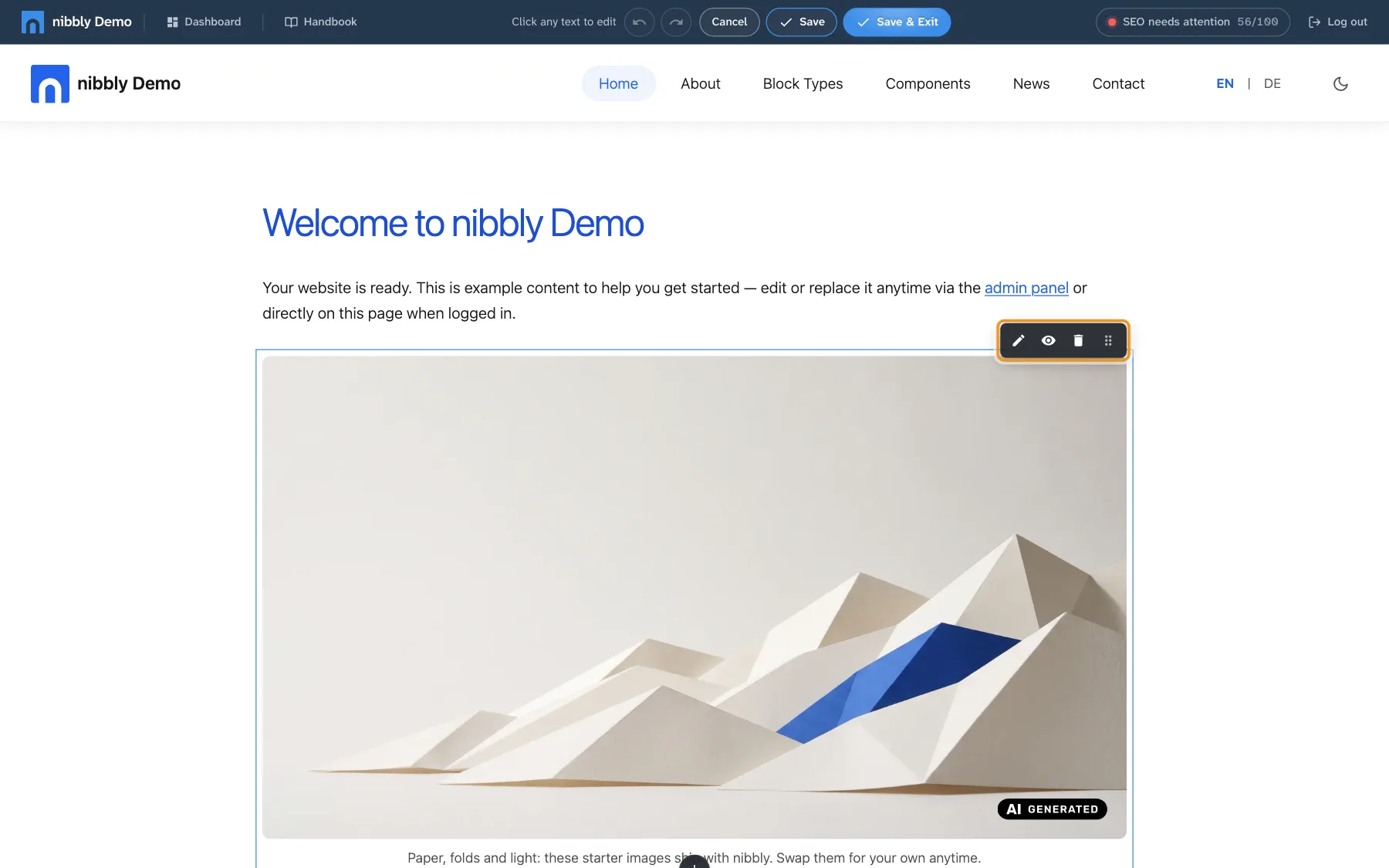
A page is made of sections (blocks): a text block, an image, a row of cards and so on. When you move over a section in edit mode, a small toolbar appears at its top right:
- Edit Edit
- Opens all fields of the section in a form, including those you can't click directly on the page.
- Hide Hide
- Hides the section from visitors without deleting it. A second click shows it again. Single fields and list items have the same eye.
- Delete Delete
- Removes the section after asking.
- Drag to reorder Move
- Drag the handle to move the section up or down.
- Add block Add block
- The plus below a section inserts a new block at that point. You pick the type from a list with a search field, such as text, heading, image, list, card or YouTube.
When you add or delete a section or list item, nibbly saves immediately, together with all your other open changes, and reloads the page. Everything else, including moving and hiding, waits for Save.
Content Editor
Next to the Visual Editor is Content Editor. It shows the same content as a form in the dashboard, field by field. That's handy for fields you can't see on the page, such as the description for search engines. For normal changes, editing right on the page is usually easier.
Footer
The footer is the same on every page, so changes to it apply to the whole website. In edit mode, clicking a footer entry opens the Edit footer window with link text and address, per language. This, too, is applied only when you save. You also manage the footer's links and contact details together under Menu and footer.
Saving and undo
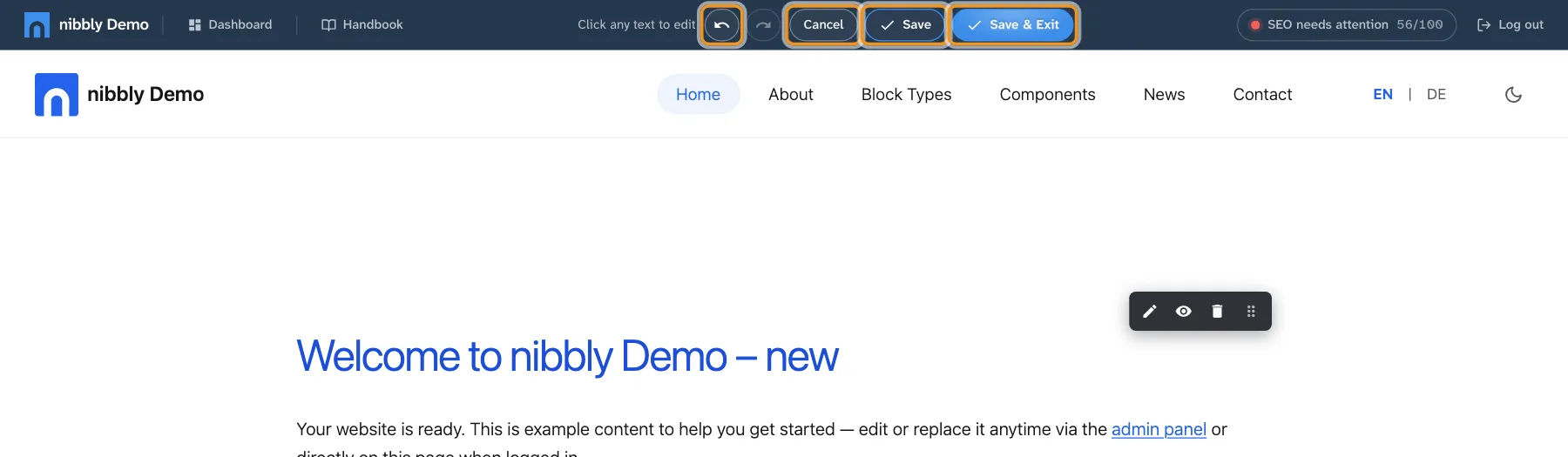
In edit mode the bar at the top holds four tools. Changes to texts, images and links go online only when you save. Until then only you see them.
- Undo Redo
- Undo and redo, step by step. Keyboard: ⌘ Z (Windows: Ctrl Z) and ⌘ ⇧ Z (Windows: Ctrl ⇧ Z). While you're typing in a text, the keys only affect that text.
- Cancel
- Discards all changes since the last save, without asking, and reloads the page.
- Save
- Saves and keeps edit mode on. Good in between, during longer work. Keyboard: ⌘ S (Windows: Ctrl S).
- Save & Exit
- Saves and shows the page again the way visitors see it.
If you click a link to another page in edit mode, nibbly asks whether you want to leave edit mode. When you close the tab, the browser warns you. Adding or deleting sections and list items, on the other hand, nibbly saves at once.
When two people work at the same time
If someone else edits the same page and saves before you, nibbly doesn't silently overwrite their work. The window Changed in the meantime appears with your unsaved version and the currently saved version side by side. You can Keep editing, save your changes as a file (Download my changes) or discard them and load the new version. The easiest way: copy your text from the left box, reload and paste it again.
Bringing back earlier versions
Every time you save, nibbly keeps the previous version of the page; the last 30 are kept. So even after saving you can go back to an earlier version, see Backups.
Editing text
In edit mode you click into a text and start typing, as in a word processor. There are two kinds of text fields:
- Short texts such as headings, captions or labels. They are plain text without formatting. Enter finishes the field. If you empty a field completely, nibbly restores the old text.
- Body text such as paragraphs. As soon as you click into it, a small toolbar appears above it.
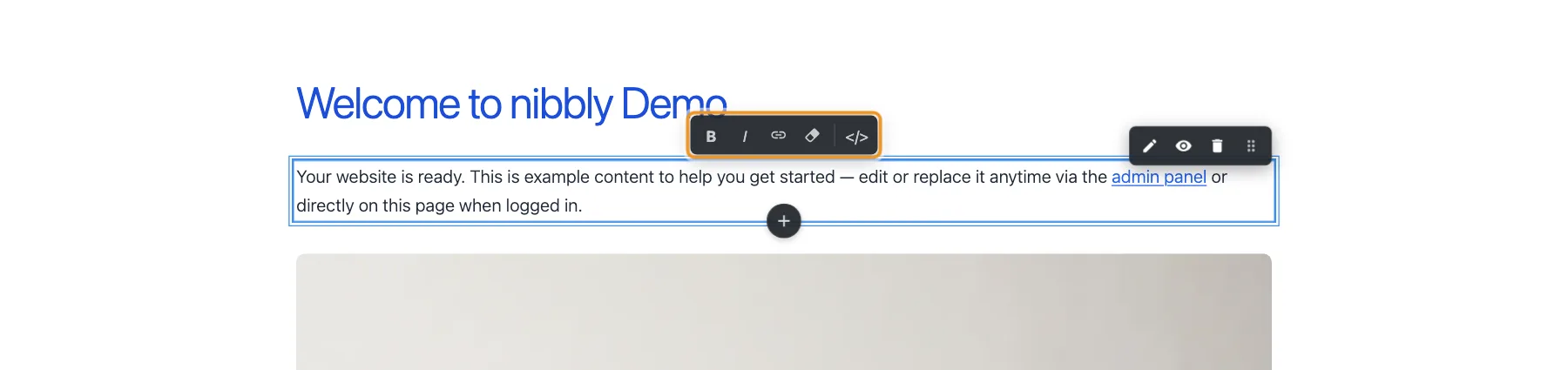
- B / I
- Bold and italic for the selected text. Keyboard: ⌘ B (Windows: Ctrl B) and ⌘ I (Windows: Ctrl I).
- Insert link Insert link
- Select a word or phrase first, then click; without a selection you get a hint. You pick a page of the website or enter an address, see Links and buttons.
- Clean formatting
- Removes bold, italic and other markup from the selected text.
- </> HTML
- Shows the paragraph as HTML code. Only needed if you know exactly what you're doing.
Tips
- Pasting text from Word or an email: nibbly keeps only simple markup such as bold, italic and links. Fonts, colours and sizes of the source are dropped so the page stays consistent.
- Cancel a single field: Esc discards the change in the field you're typing in.
- Multilingual websites: each language has its own version of the page. Switch the language on the website and edit the translation there.
- Fields you can't see: some texts only appear in a certain state, for example on a phone. You find them via Edit in the section's toolbar or in the Content Editor.
Links and buttons
In edit mode you simply click buttons and standalone links (such as “Learn more” or links in the footer). The Edit Link window opens. Links inside body text are set via the toolbar, see Editing text.
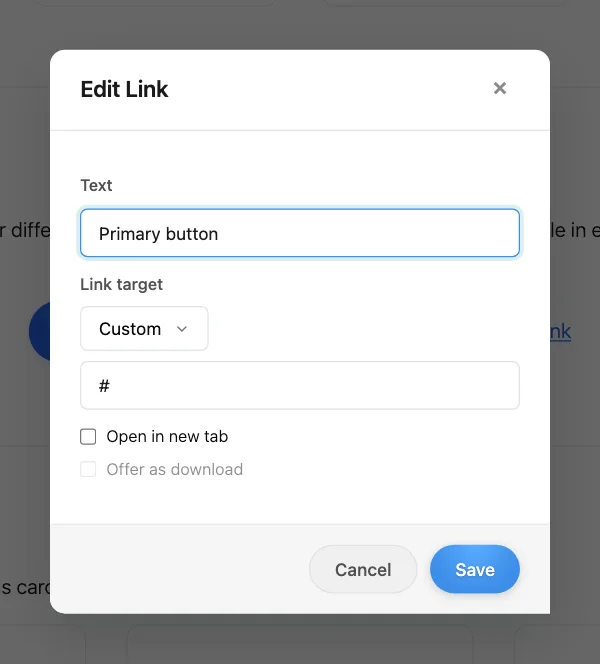
- Text
- What the button or link says.
- Link target
- The select lists all pages of the website under Site pages. Custom takes any address, such as another website (with
https://), an email address (mailto:) or a phone number (tel:). - Open in new tab
- Useful for links to other websites, so your page stays open.
- Offer as download
- For files such as PDFs, Office documents or ZIP archives: the browser downloads the file instead of showing it. For other targets the option is greyed out.
Save in the window applies the link to the page. Like all other changes, it goes online only when you save in the bar at the top.
In edit mode, clicking a link opens the window instead of the target page. To try it out, leave edit mode and then click the link.
Images and media
To replace an image, click it in edit mode. The Image manager opens with the current image already selected.
- In edit mode, click the image you want to replace.
- Pick an existing image or upload a new one: drag files into the area at the bottom or click Upload. Several files at once work too.
- Click Select image.
- nibbly asks for the alt text: a short description of the image for people who can't see it and for search engines, such as “Team at the summer party in the courtyard”.
- Like all changes, the new image goes online only after Save.
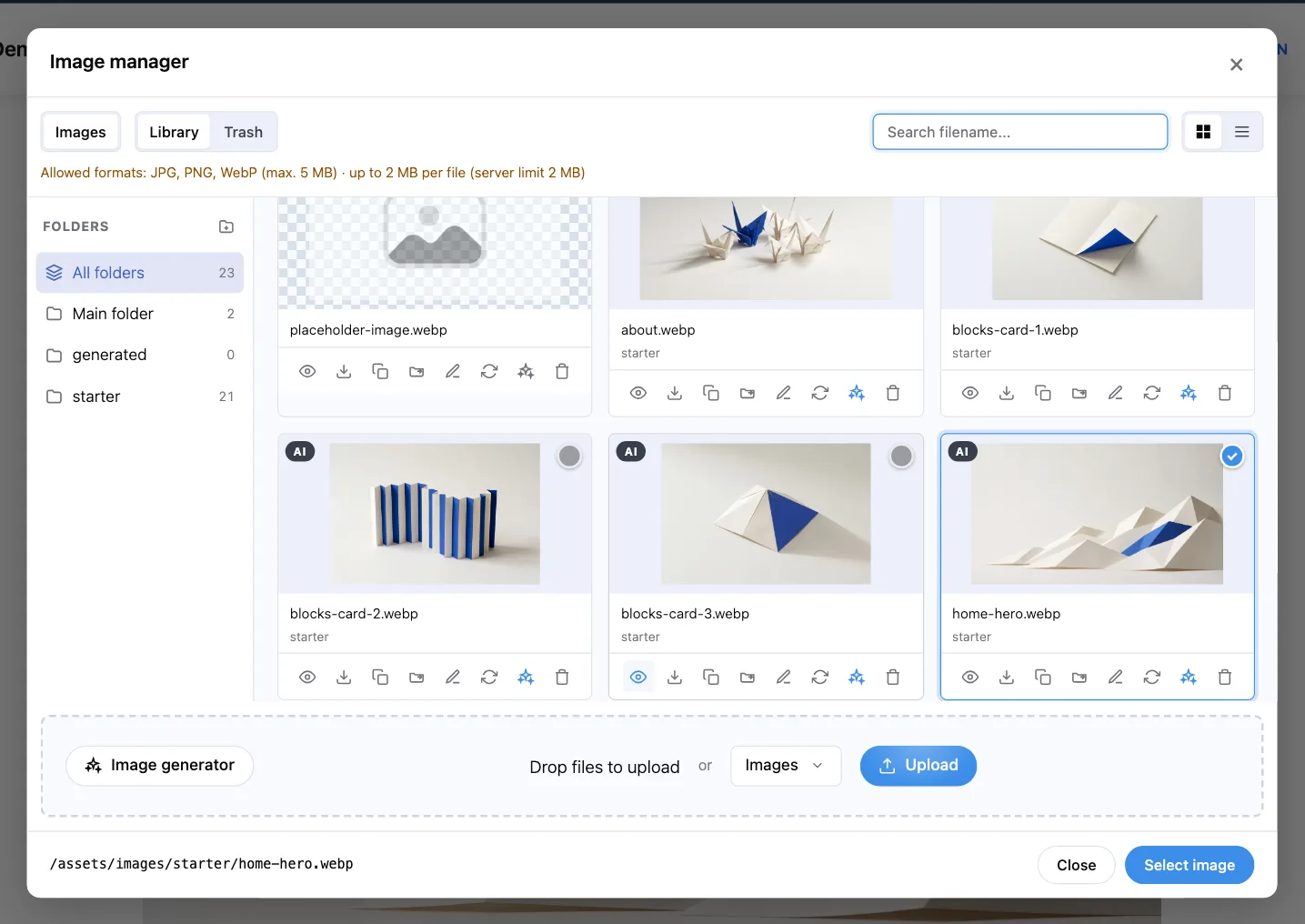
Keeping the image manager tidy
- Folders
- On the left, the folder symbol creates new folders, for example for a project or a year. Empty folders can be deleted again.
- Search and view
- At the top you search by file name and switch between grid and list.
- Below each image
- Small symbols for preview, download, copy path, move to another folder, rename, replace, AI label and delete. Move the mouse over a symbol to see what it does.
- Trash
- Deleted images go to the Trash first (at the top next to Library). From there you bring them back with Restore or delete them for good.
- Same file name
- If the name already exists, nibbly asks whether to overwrite the old file or save the new one under a different name.
Allowed files and size
For images, JPG, PNG, WebP, GIF and SVG are allowed. The maximum size per file is shown in the upload area. You don't have to shrink large photos yourself: on upload nibbly automatically creates a web version that loads quickly (by default at most 2000 pixels on the longest side; configurable in settings). The original is kept; the Original badge on the image leads to it.
nibbly can't crop images or set a focal point. Prepare the image in an image editor beforehand.
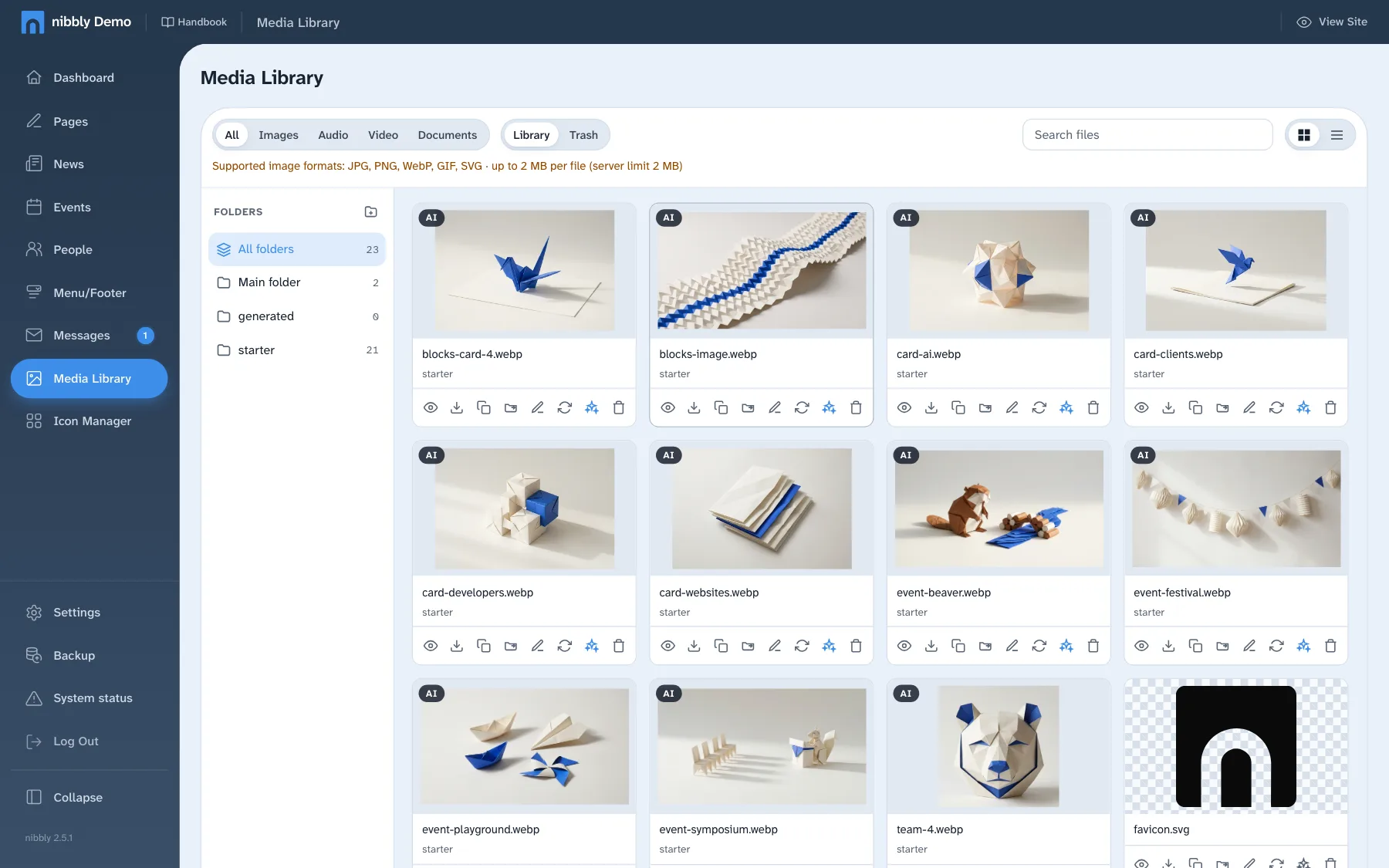
The Media Library
In the dashboard, Media Library manages all files of the website in one place: images, audio, video and documents such as PDFs. At the top you filter by file type; otherwise everything works as in the image manager.
It describes the image for screen readers and search engines. If it’s missing, the page’s SEO check lists it as a hint.
Managing pages
Under Pages in the dashboard you see all pages of the website. Above each title is the page's address (such as /contact), next to it the SEO rating. On multilingual websites each further language has its own column.
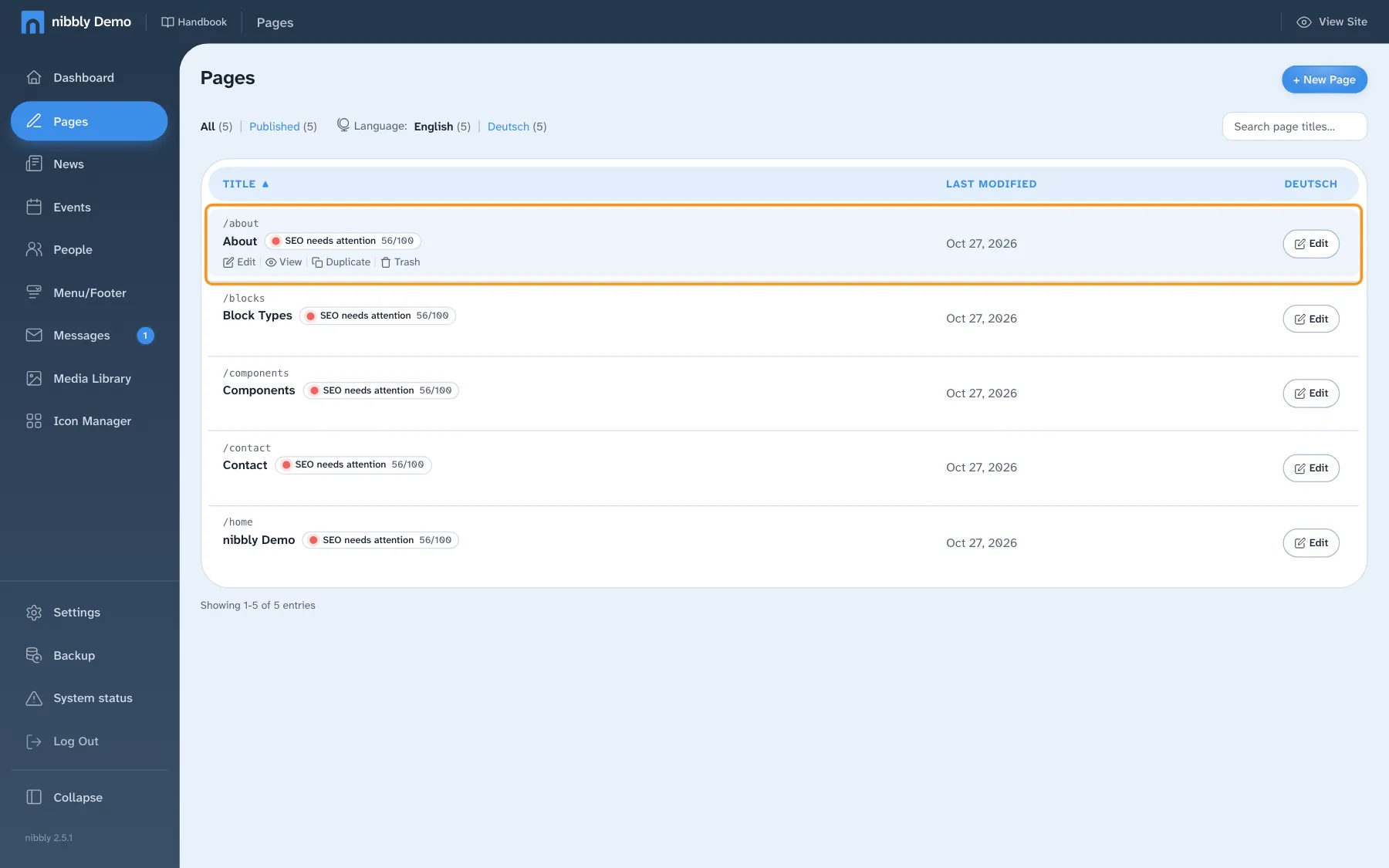
- Edit
- Opens the page in the dashboard's Content Editor (see below).
- View
- Opens the page on the website in a new tab. There you edit it with the Visual Editor.
- Duplicate
- Creates a copy, handy as a template for a similar page.
- Trash
- Moves the page to the trash, without asking. Via the Trash filter at the top you bring it back with Restore.
- + Create
- In the column of another language: creates the translation as a copy, which you then translate.
Adding a page
- Click New Page at the top right.
- Enter a title. nibbly fills in the slug, the part of the address, from it. A slash makes a subpage, such as
services/consulting. - Create Page. The new page is publicly reachable right away. Which menu it appears in you set in the Content Editor under Navigation or under Menu and footer.
Pages have no draft status. If a page shouldn’t be public yet, set it to “Private, password protected” in the page settings. Signed-in users still see it without a password.
The Content Editor
The Content Editor shows a page as a form: title and text at the top, the sections below to expand. At the top right are Save, View and the languages. Changes in the Content Editor apply only after saving.
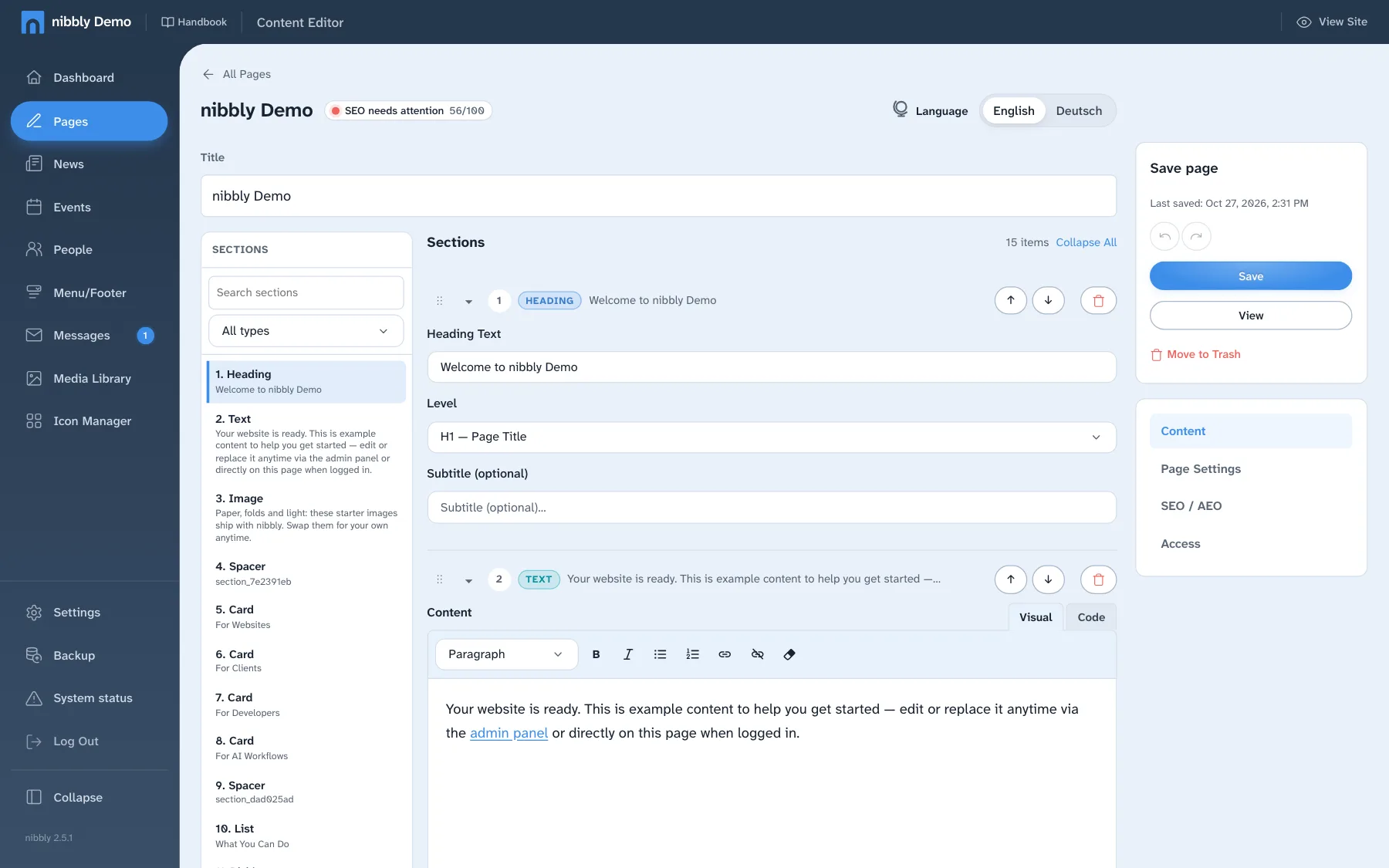
- Sections
- Expand to edit, drag the handle to sort, Insert here to add a new section at a spot. Hints such as “alt text missing” show where something is missing.
- Basic data
- Title and description of the page.
- Navigation
- Which menus the page appears in, and the breadcrumb.
- Access
- Public or Private, password protected with its own page password and text for the password page.
- SEO / AEO
- SEO title, meta description (the text below the link in Google), a short answer for AI search and the image for shared links. The SEO rating at the top shows what's missing.
SEO rating
The rating next to each page title and in the bar on the website reads SEO looks good, Review SEO or SEO needs attention, with points up to 100. Move the mouse over it on the website to see the list of hints, such as a missing meta description or images without alt text. A click opens the Content Editor.
Writing and switching languages
Since 2.5, the visual writing view has an HTML counterpart with syntax highlighting, line numbers and indentation. Its toolbar supports links, lists and formatting. Use the shared language selector to move between versions. A missing language starts as a copy, which you can translate yourself or with configured AI. Before switching, nibbly asks what to do with unsaved changes.
↑ On this pageMenu and footer
Under Menu/Footer you edit the website's menus, such as the main navigation at the top, and below them the details in the footer. On multilingual websites you pick the language at the top.
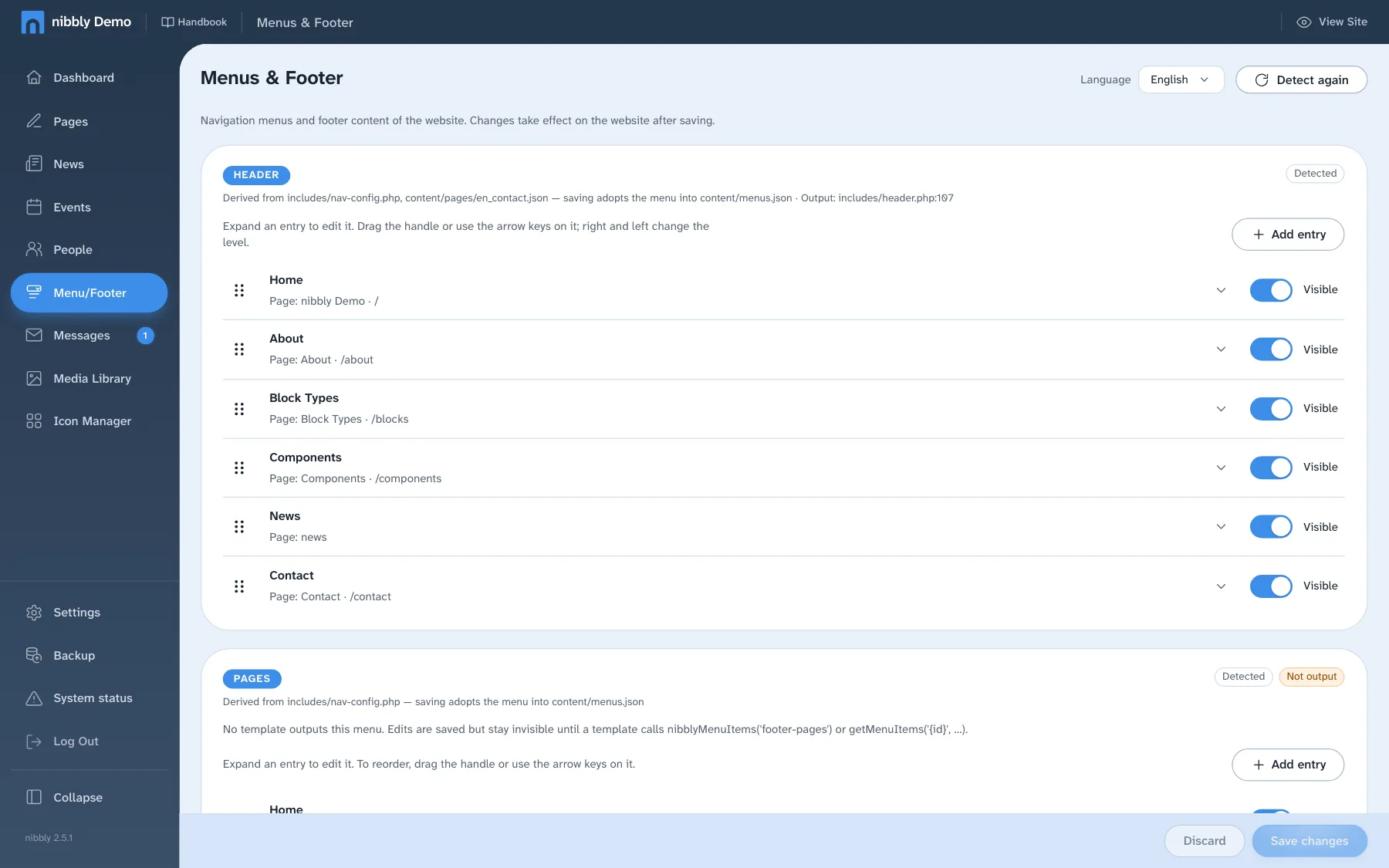
- Editing an entry
- Expand the entry, then change the label (the text in the menu) and the link target. Under Open in you choose whether the link opens in the same or a new window.
- Show and hide
- The Visible: on Visible switch hides a menu item without deleting it.
- Order
- Drag the handle Handle or click Move up and Move down in the expanded entry. Sub-entry indents an item below the previous one, Up a level brings it back.
- New menu item
- Add entry, then pick an existing page or enter a free link and Add.
- Deleting
- Remove in the expanded entry. The page itself stays.
Footer
Below the menus are the footer's fields: texts, links, link groups, logo and contact details such as phone, email and address. What's here appears on every page.
nibbly applies changes to menus and footer only with “Save changes” in the bar at the bottom. “Discard” undoes everything since the last save. Before every change nibbly makes a backup; under “Backups” you bring back earlier versions.
News
News are dated posts, like posts in WordPress. Under News you see all posts; at the top you filter by Published, Draft and Trash.
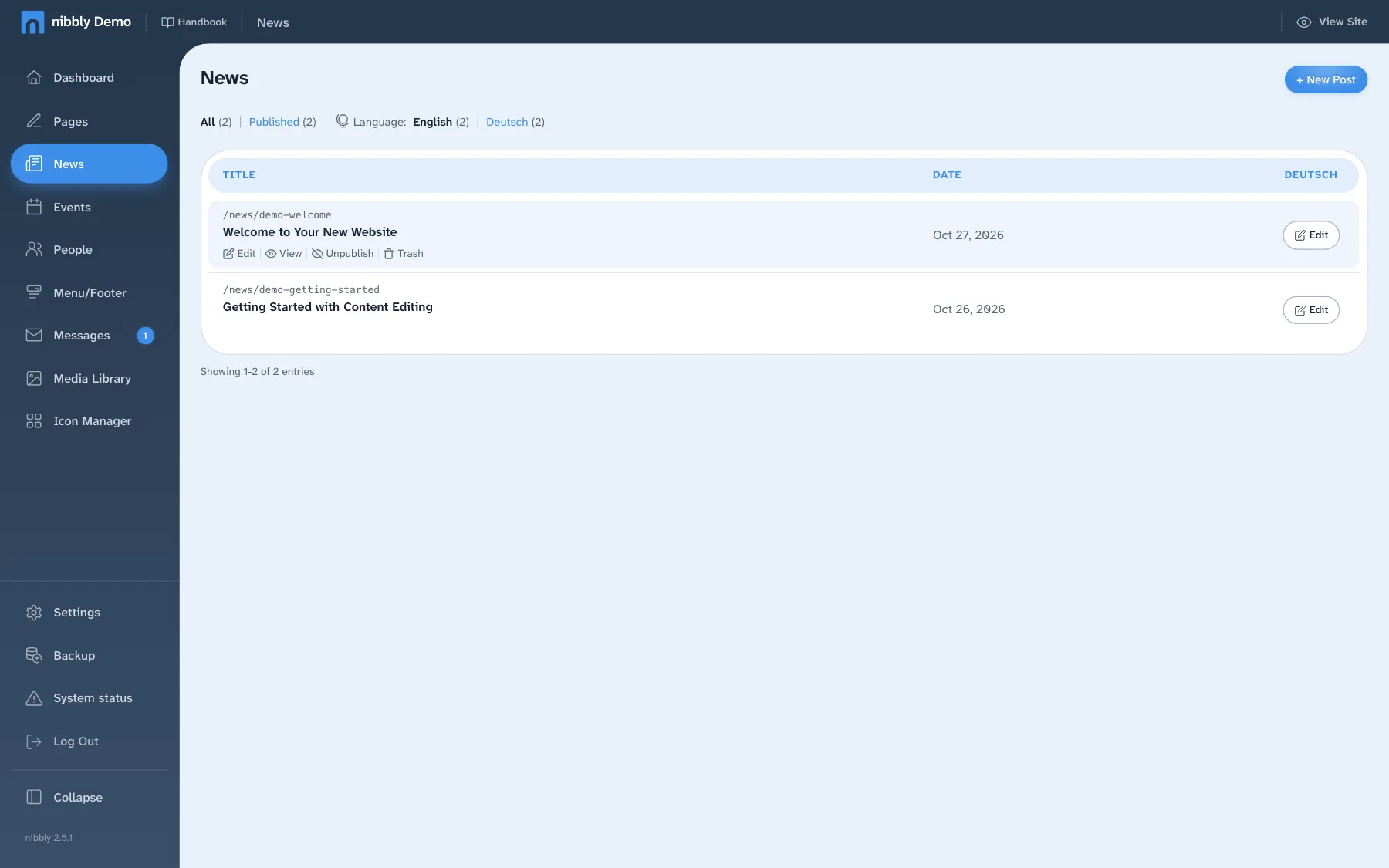
Writing a post
- Click New Post.
- Enter title and content. The short description appears in overviews and previews.
- On the right, under post settings, are the date, author, address (slug) and the cover image, which you pick from the image manager via Browse.
- As long as Draft is ticked, visitors don't see the post. To publish, untick it and click Save post.
In the list you can also put a post online directly with Publish or take it down again with Unpublish. You can also change existing posts on the website in the Visual Editor: title, text and author.
Deleted posts go to the trash and can be restored from there. Since 2.7, categories and tags help organize posts. See Organizing news.
On multilingual websites with AI features switched on, “Translate from …” creates a translation. New translations start as drafts so you can check them before publishing.
Organizing news: categories, archives and URLs
Since nibbly 2.7, posts support categories, tags and internal flags. These features extend the News workflow in the previous chapter; the screenshots show the 2.6 interface.
Use categories and tags
- Open a post in the dashboard.
- Select its categories. Administrators maintain the available categories under Settings → Post settings.
- Add tags for more specific topics. Internal flags help build selected lists; they are not public categories.
- Save and check the public post. In the standard layout, category and tag chips link to their archives.
Archives and post addresses
Archives can show all posts, a category, a tag, a year or a decade. Administrators set the archive paths and posts per page in Post settings. The default post address is /news/{slug}; a custom pattern may include a date, such as /{yyyy}/{mm}/{dd}/{slug}.
Check the address displayed in the editor before publishing. Old slugs and incorrect date variants redirect to the canonical URL. Agree changes to the URL pattern with the person maintaining your site. Site templates may customize post and archive layouts.
Timelines
A template can display posts as a timeline, oldest first, grouped by year or decade, with jump navigation, images and optional galleries. Your site developer handles the template; editors maintain the underlying posts, dates and images.
↑ On this pageSearch and RSS
From 2.7, nibbly includes full-text search and RSS feeds. A standard installation offers search at /search and a feed at /feed.xml. Additional languages have their own feed addresses.
Help visitors find your content
Search includes public pages and published news. Clear titles and excerpts matter: they rank above body text. All search words must match and results show highlighted snippets. The index updates after saving and when content files are newer.
Private pages, noindex pages and pages with seo.searchable: false stay out of the index. Draft posts only become searchable after publication. Custom templates can change the search form and results layout.
Subscribe with RSS
Visitors can add the feed address to an RSS reader. By default it supplies the latest 20 posts, their categories and a post image. A newsletter account is not required.
Search and feeds are enabled by default. The site maintainer can disable them with search.enabled: false and news.feed: false in site settings. Search does not have its own settings panel in 2.7. See the technical documentation for integration details.
Comments and guestbook
The Comments & guestbook module arrives in 2.7. Enabling the module alone does not put a form on the website: the site maintainer adds comments to the template, or gives a standard page the field comments: guestbook.
Review submissions
- Open Comments & guestbook in the dashboard. Its badge counts waiting entries.
- Filter by status and read the entry in the context of its page or post.
- Approve suitable entries, hold them or mark unwanted submissions as spam. Delete entries only when they are no longer needed.
- Check the public thread after approval.
Moderation is enabled by default. Known name and email pairs can be approved automatically when configured. Notifications go to the configured form recipient and require working email delivery.
Protection without an external CAPTCHA service
One-time tokens, a minimum submission age, a honeypot, a signed arithmetic question, content checks, rate limits and duplicate checks work together. The form also works without JavaScript. The site maintainer configures comment options and an optional word blocklist in the files; 2.7 does not yet provide a dedicated settings panel for these options.
↑ On this pageEvents
Under Events you manage events. The list shows title, date, venue and status (Upcoming, Today, Past). At the top you can also filter for hidden events and the trash.
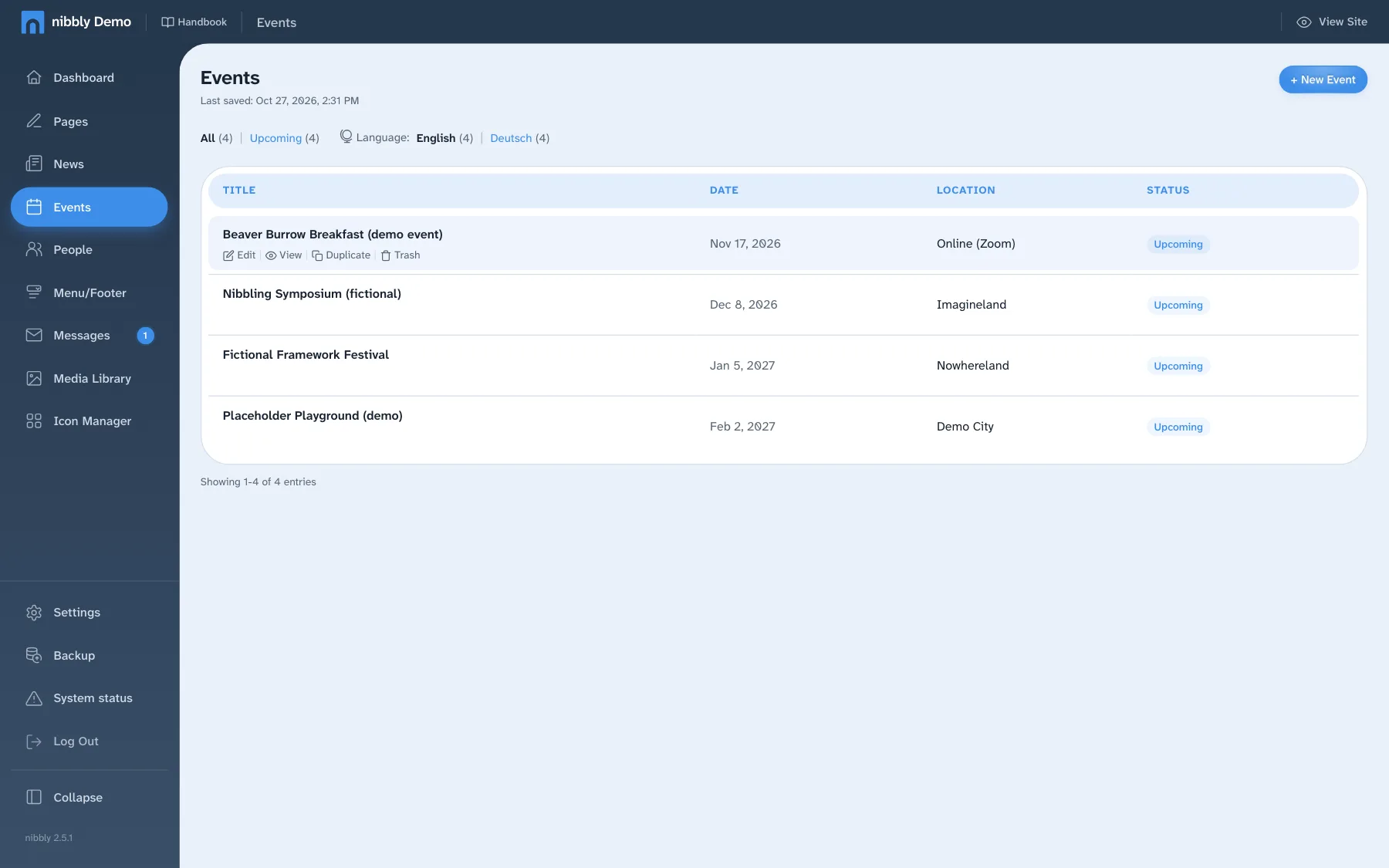
Adding an event
- Click New event or Edit on an existing event. Duplicate saves work for recurring events.
- Under Date & time enter at least the start date, plus start time, end date and end time as needed. An event without a date counts as a draft.
- Per language, fill in title, venue, description and admission. Optionally an image and a link, for example to registration.
- Save. Each event gets its own page on the website.
You can hide an event for a while on the website: in edit mode with the eye on the event. There you can also edit and delete events directly; nibbly saves these changes at once.
People
Under People you keep profiles, for example of the team, speakers or contacts. You create a profile once and show it on as many pages as you like. Profiles have nothing to do with the user accounts for the dashboard.
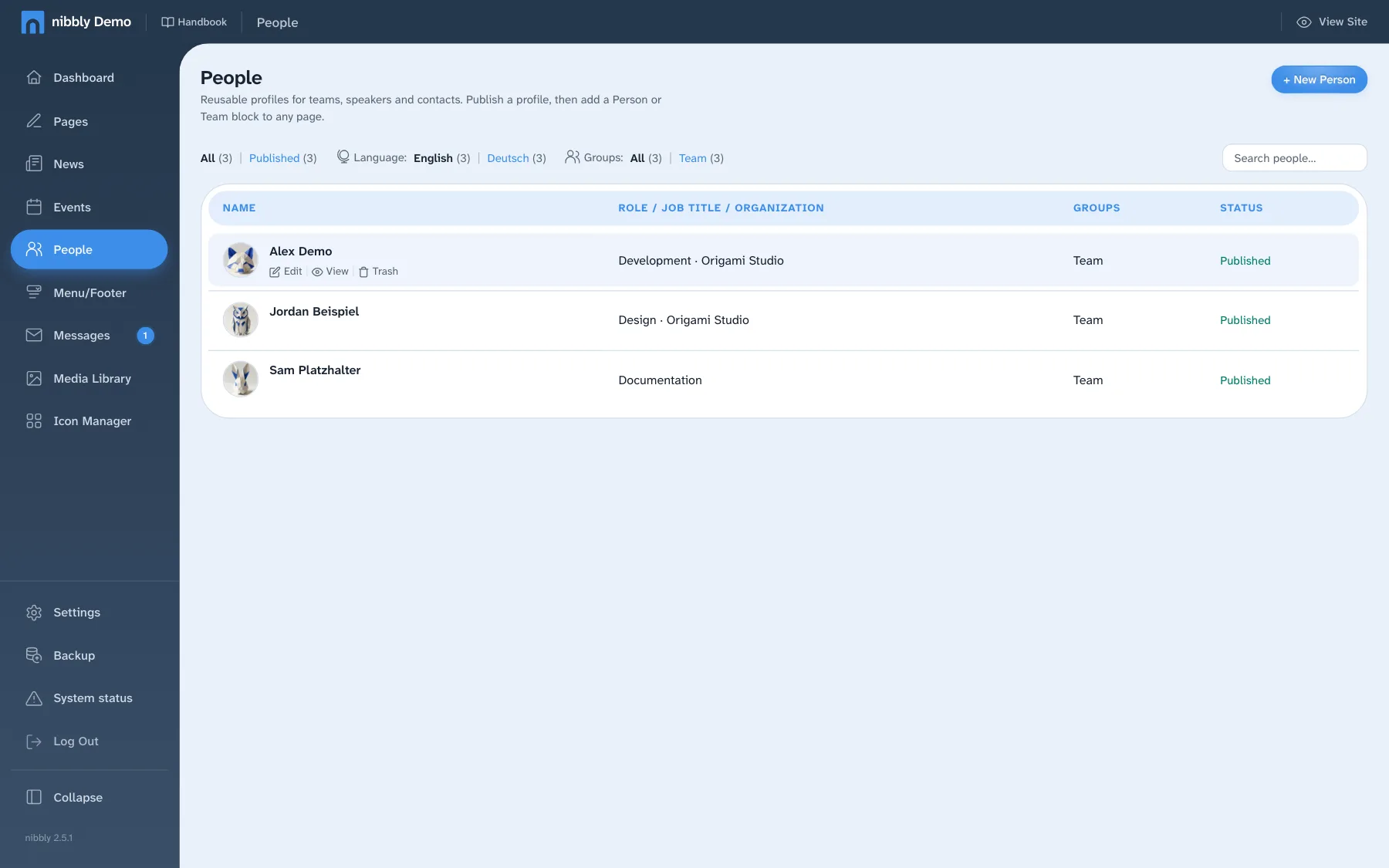
Creating a profile
- Click New Person.
- Enter the name (required), position and organisation, plus a short description and the full biography.
- Pick or upload a photo, with alt text and photo credit.
- Under more details are quote, groups, order and contact details. Note: website, email and phone are publicly visible once the profile is published.
- Save as draft while something is still missing, or Publish.
- Groups
- Several groups separated by commas, such as “Team, Board”. This lets you show a specific group on a page.
- Order
- Smaller numbers come first; with equal numbers, alphabetically.
Showing profiles on a page
In edit mode you insert a block via Add block: Person shows a single profile, Team / group of people a whole group in two to four columns. Only published profiles appear on the website; each also has its own page.
Messages
What visitors send via a form on the website, such as the contact form, ends up under Messages. A number on the menu item shows unread messages. If email sending is set up, messages also arrive by email.
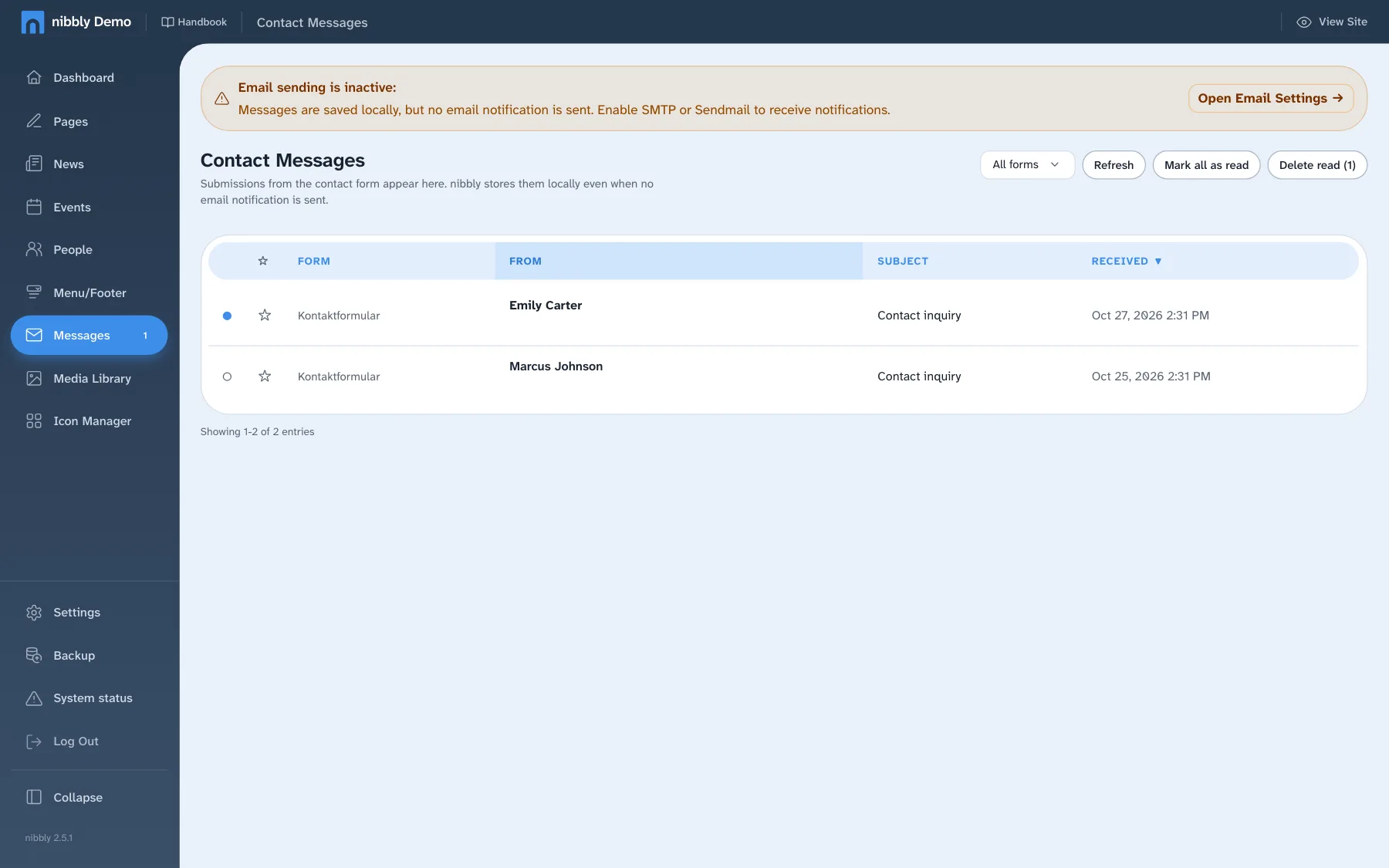
- Reading
- Clicking a row opens the message and marks it as read. With the symbols in the row you set it back to unread or add a star.
- Tidying up
- Mark all as read and deleting read messages are at the top.
- Deleting
- In the opened message. Deleted messages are gone for good; there is no trash.
Which fields a form has, and whether it stores messages or sends them by email, you set under Settings › Forms. If something is missing, the messages page shows a hint at the top with a link there.
Icon Manager
The Icon Manager manages the website's symbols, for example for cards or lists. When you choose an icon in a block, it comes from this collection. Each icon shows whether it's part of nibbly's standard set or was added later.
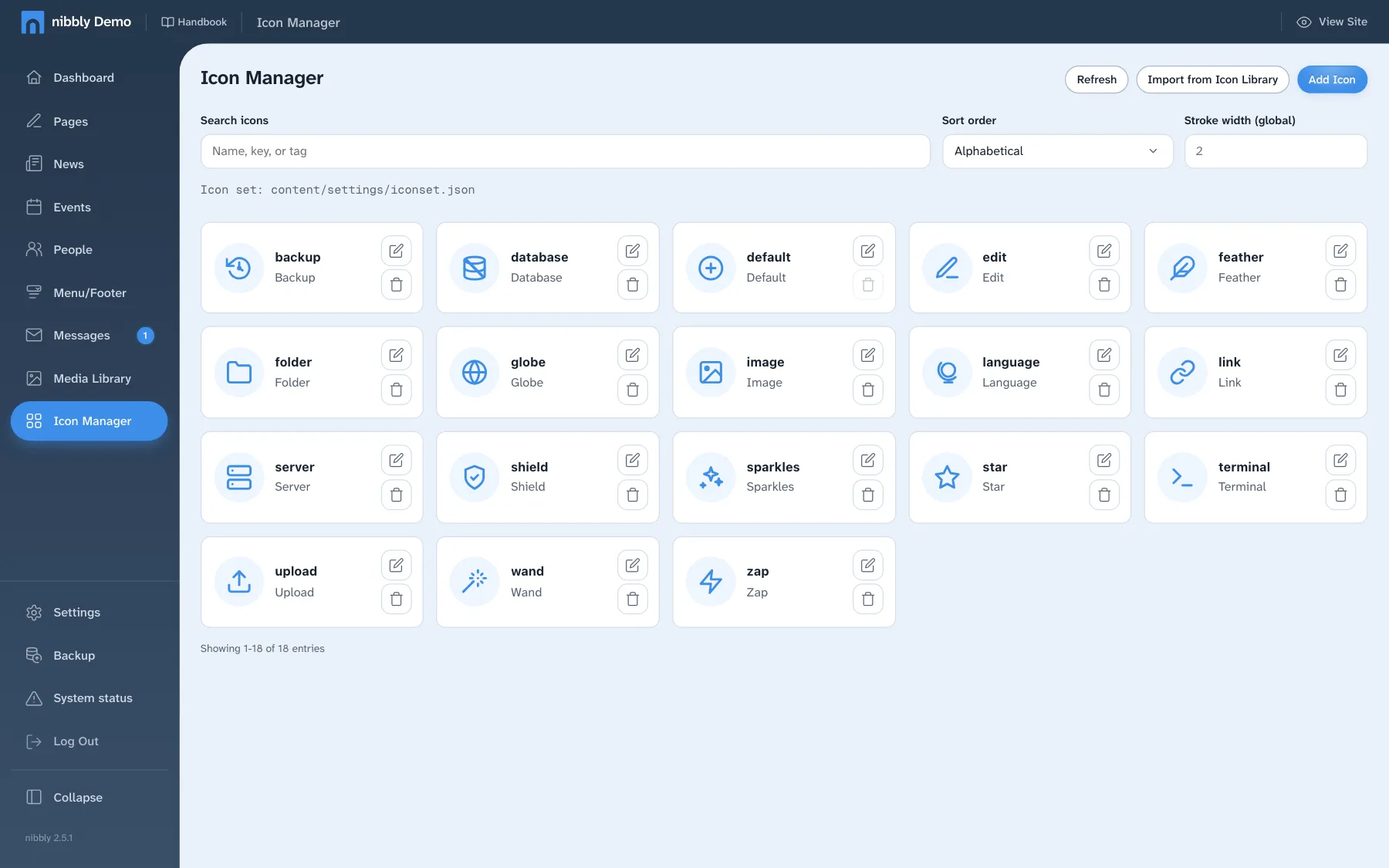
- Import from icon library
- Searches a large, free icon collection. Icons you pick are stored on your own website; the icon set's licence is shown. Imported icons use the global stroke width; their style and licence source are kept when you save.
- Add icon
- For your own icons: enter a unique key, a label and the SVG code. The preview shows right away how it looks. Use currentColor makes the icon take on the website's text colour.
- Style
- In the edit form you set whether an icon is drawn as “Line (outline)” or “Solid (filled)”. nibbly detects this from the SVG code when you paste it and suggests the matching value; change it if needed.
- Stroke width (global)
- The field in the bar at the top sets the line weight for all line icons that don't have their own. The default is 2. This keeps icons from different collections looking consistent.
- Stroke width per icon
- Optional field in the edit form. If it's empty, the global stroke width applies. If the SVG code contains one uniform stroke width, nibbly moves it into this field when you save. Icons with deliberately mixed widths are left unchanged. Values from 0.25 to 6 are allowed.
- Editing and deleting
- If an icon's key changes or it's deleted, content that uses it shows a default icon.
AI features
nibbly can work with an AI service such as OpenAI, Anthropic (Claude) or OpenRouter. This needs your own account with that service and an API key, which you enter under Settings › AI Settings. Without a key, the dashboard shows the notice that AI isn't configured.
Assistant
A chat on the dashboard's start page and, if switched on, in the Visual Editor. It answers questions and prepares changes that you review and release with “Apply changes”. “Undo” takes them back.
Text and SEO
Fills in a page's SEO title, meta description and short answer, suggests texts and translates pages, news, events and profiles into another language.
Image generator
Creates images from a description, in the dashboard and in the image manager. AI images receive a label so their origin stays visible.
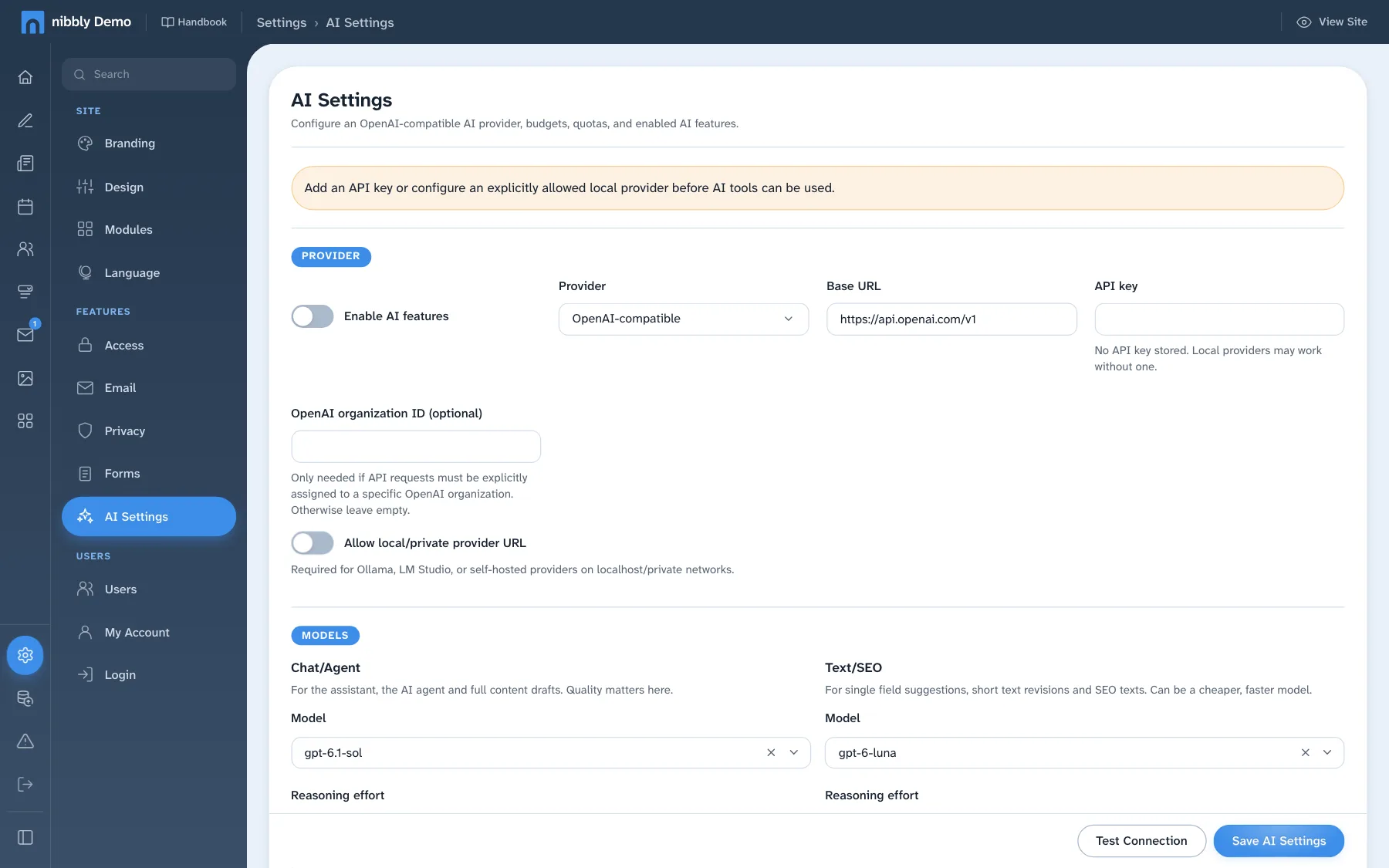
- Features
- Assistant, text and SEO generation, image generation, and whether the chat appears in the Visual Editor and in the dashboard.
- Limits
- A monthly budget and requests per day protect against unexpected costs. Usage this month shows where you stand.
- What editors may do
- Sets what the assistant may do for editors, such as publishing, generating images or creating new pages.
Texts and images you send to the AI go to the chosen provider. Don’t include confidential or personal data that doesn’t belong there.
Choose an image service independently
The image service is selected separately from the chat provider, so text and image tasks can use different services. Administrators configure models, credentials and allowed features. Available formats and reference-image support depend on the selected image model.
↑ On this pageSettings
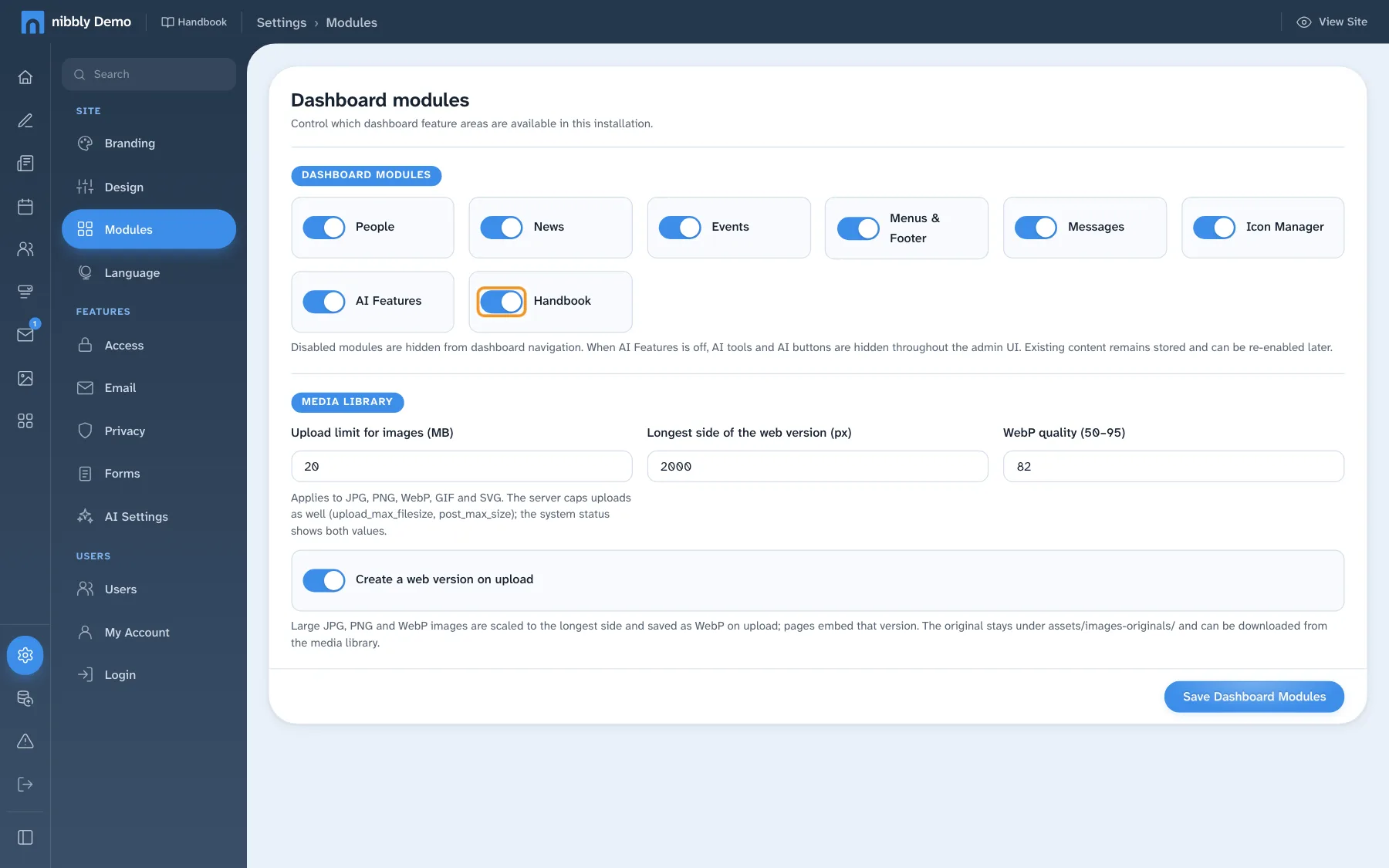
When you click Settings, the sidebar folds to icons and a second bar with all areas appears next to it. At its top, Search finds any setting by keyword. Each area has its own save button at the bottom.
Site
- Branding
- Site name, favicon, logos for light and dark, the image for shared links and the logo in the dashboard. Here you can also block the website for search engines, for example while it's being built.
- Design
- The look of the dashboard, not of the website: style, light or dark, base colour, font and size. Also how many entries lists show per page.
- Modules
- Switch areas on and off, such as news, events or this handbook. Switched-off modules disappear from the dashboard; their content stays stored. Below: upload limit and web version for images.
- Language
- The dashboard's language and the website's languages: order, main language and new languages, optionally starting with all content of an existing language.
Features
- Access
- Maintenance mode: visitors see a notice page (“Maintenance”, “Back soon” or a countdown); signed-in users see the website as usual. A secret link lets others take a look in advance.
- How the website sends email and where form messages go. Send Test Email checks the setup. Without email sending there's also no “Forgot password?”.
- Privacy
- Hide email addresses from spam robots and switch the anonymous visitor statistics on or off.
- Forms
- Fields, texts and behaviour of the forms, such as the contact form.
- AI Settings
- See AI features.
Users
- Users
- Create and manage accounts, see Users and roles.
- My Account
- Change your own password.
- Login
- Where you land after signing in (back to the page or always the dashboard) and how the sign-in page looks.
Users and roles
nibbly has two roles:
Admin
May do everything, including menus, media library, settings, users, backups and system status.
Editor
For editorial work: pages, news, events, people and messages, the Visual Editor and uploading images. Of the settings, only “My Account”.
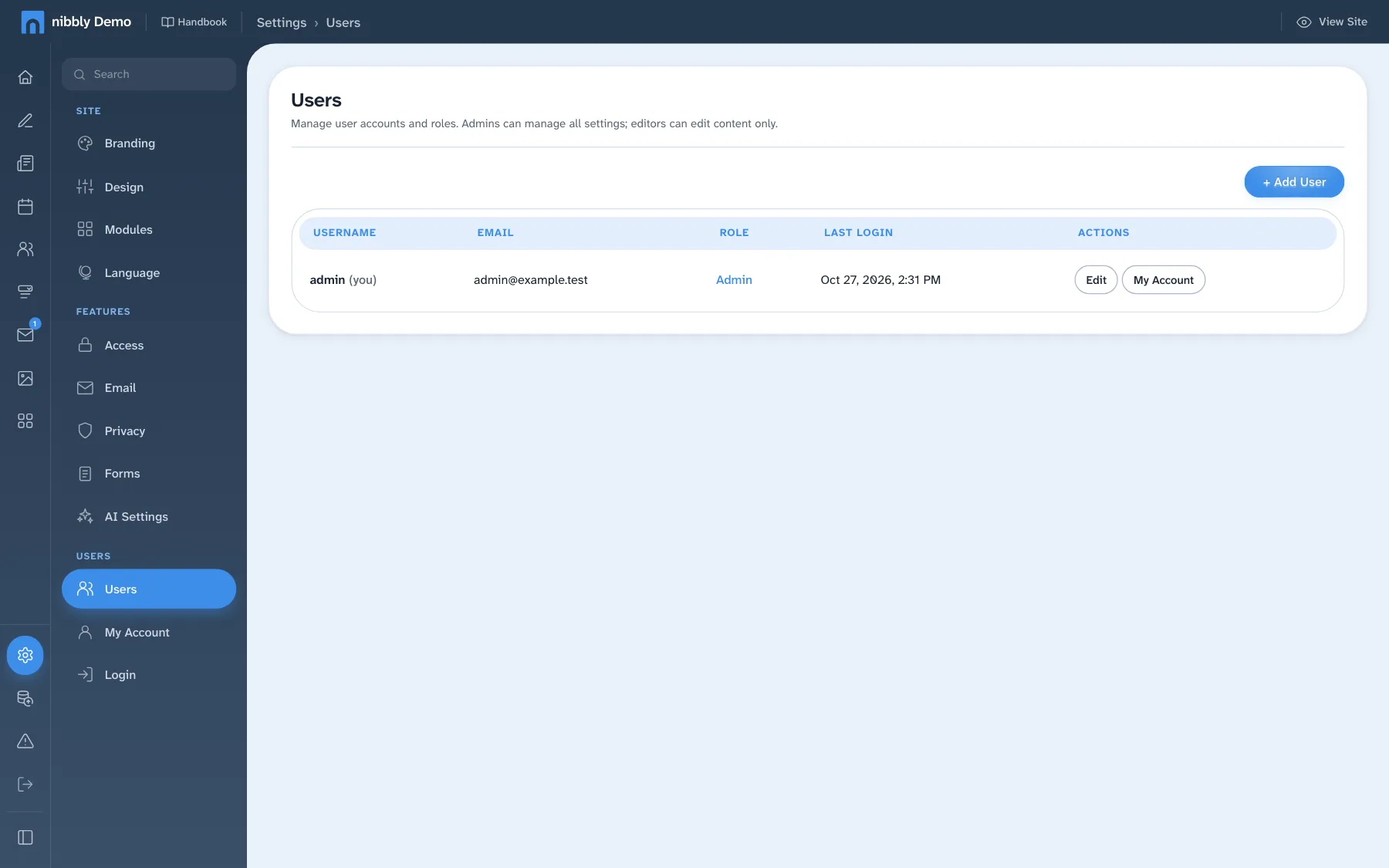
Adding a user
- Settings › Users › Add User.
- Choose a username (at least three characters), email and role. Without an email address, “Forgot password?” doesn't work for this account.
- Enter a password or let Generate create one, and pass it on securely. The person then changes it under My Account.
In the list, Password sets a new password for someone who forgot theirs. The last admin can neither be deleted nor turned into an editor, so nobody locks themselves out.
Backups
You can hardly break anything. nibbly keeps backups on two levels:
Backups of a page
Every time you save, nibbly keeps the previous version. The last 30 versions of each page are kept.
Website backup
A ZIP file of the whole website: content, images and program files. Manually or automatically on a schedule.
Bringing back an earlier version of a page
- Open the page on the website. If it has backups, a select with date and time appears in the middle of the bar.
- Pick the version you want and click Apply.
- After confirming, the page reloads with the old version. The version it replaces is backed up first, so you can always go back.
In the dashboard you find the same backups in a page's Content Editor, with View to compare first. Menus and footer have their own backups, see Menu and footer.
Website backup
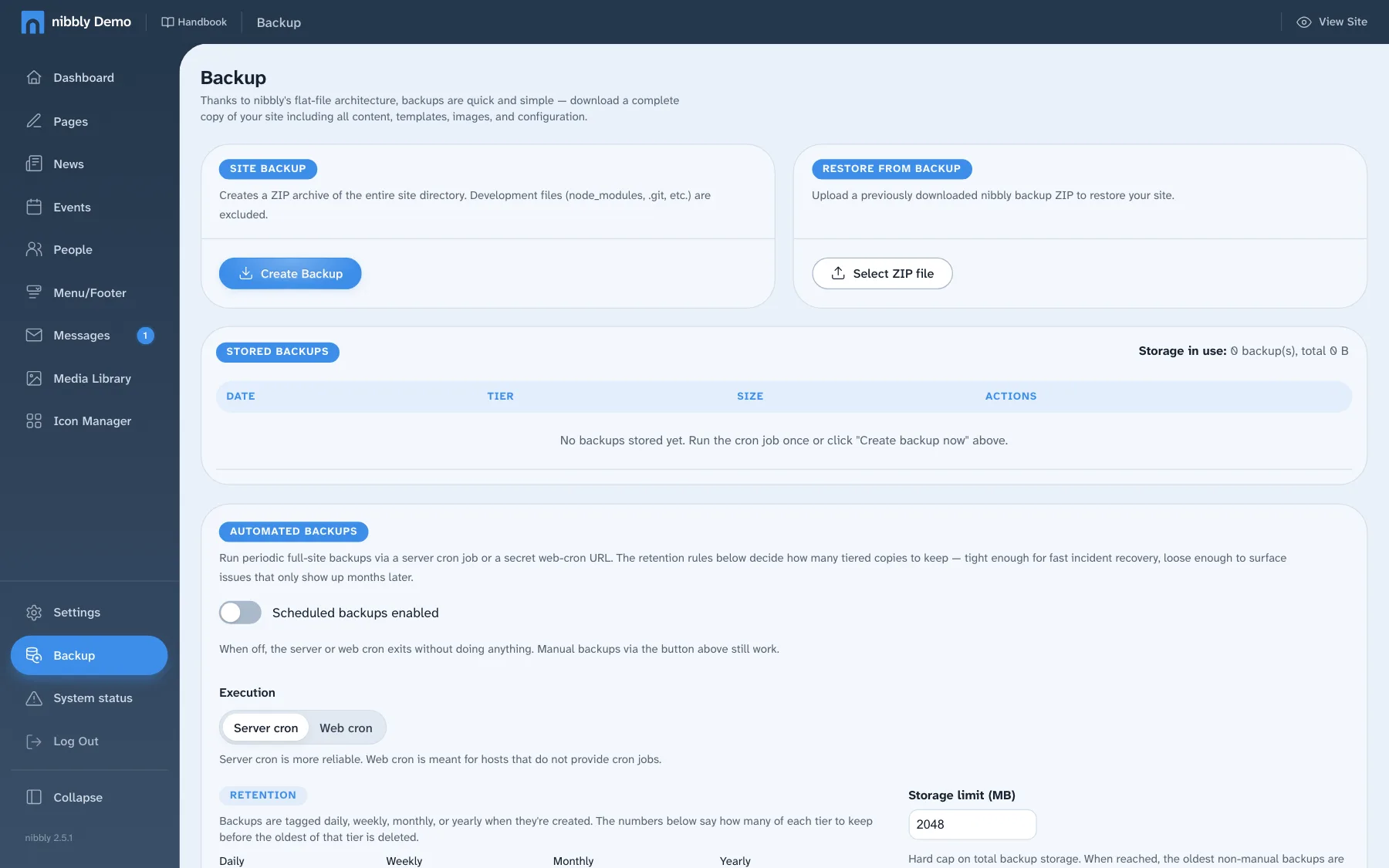
- Create Backup
- Downloads a ZIP file of the whole website and keeps a copy on the server. nibbly never deletes manual backups by itself.
- Restore
- From a ZIP file or a stored backup. Content only replaces pages, images and templates and leaves the program and user accounts alone. Full restore replaces everything; the current state is backed up first.
- Automatic backups
- On a schedule, with retention (such as 7 daily, 4 weekly, 12 monthly) and a storage limit. The server has to trigger a call regularly for this; the instructions are under “Cron setup”.
- External targets
- Copies also go to Dropbox, Google Drive, OneDrive, an SFTP or FTP server or S3 storage. That way a backup is safe even if the server fails.
At the very bottom of the Backup area is “Full reset”. It deletes the whole website and can’t be undone. Download a current backup first.
Security
- Strong password
- At least 8 characters, with upper- and lower-case letters, a digit and a special character. If your password doesn't meet this, the dashboard shows a warning with a link to change it after you sign in.
- Your own account
- Everyone gets their own account. Don't share passwords, not even within the team.
- Signing out
- Always sign out on other people's or shared computers. Without activity the session ends after one hour by itself.
- Sign-in protection
- Repeated failed attempts slow down and block sign-ins, see Signing in and the dashboard.
- Private pages
- Password-protected pages and maintenance mode are blocked for search engines. Confidential material still doesn't belong on the website.
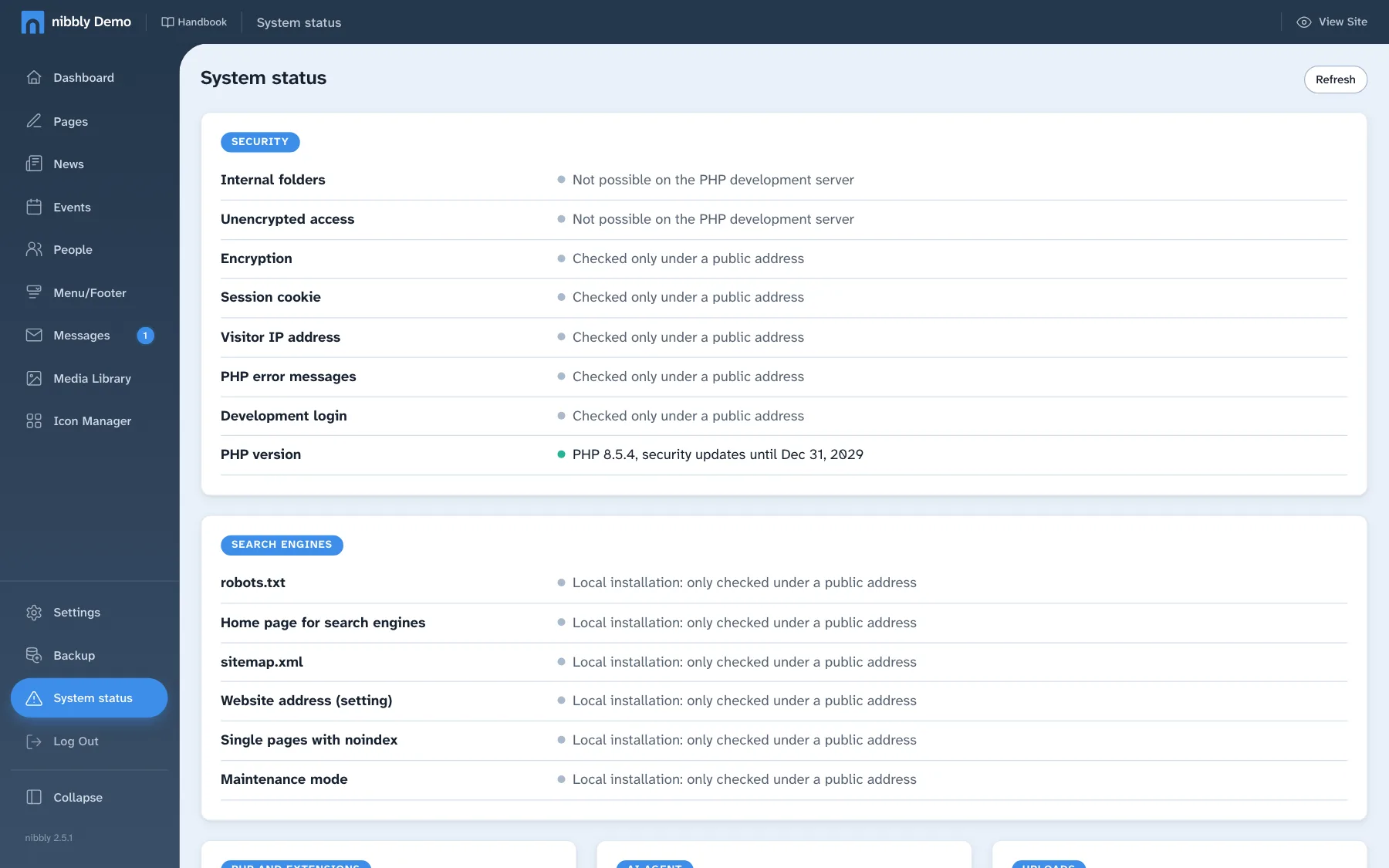
System status
Under System status nibbly checks the server: whether internal folders can be reached from outside, whether the website runs on https, whether search engines may find it, when the last backup was and which upload limits apply. For each problem it shows how to fix it. The dashboard also shows serious problems as a warning at the top.
Good to know
- Quick way to editing: if you're signed in and click twice on an empty spot of the website, nibbly asks whether you want to switch on the Visual Editor.
- Back to the page: if you sign in via the website's footer, you land back on the page you came from.
- Large photos don't need shrinking. nibbly creates a web version automatically on upload.
- Always fill in the alt text: it describes the image for screen readers and search engines.
- Statistics: the dashboard's start page shows views and visits of recent days, without cookies and without bots. Your own visits as a signed-in admin don't count.
- This handbook is always available via Handbook: in the dashboard at the top left next to the site name, and on the website in the bar next to “Dashboard”. At the top right, Dark mode switches between light and dark.